
Choosing activities
Every activity is included. The home screen sorts them by the skill they work on. Each one has a card that says what it is for, and one tap starts it. Here is how to find the right one for the moment you are in.
The home screen
When your child’s profile opens occo, the home screen shows a big green Jump in button. Below it is a row of activities for each skill.
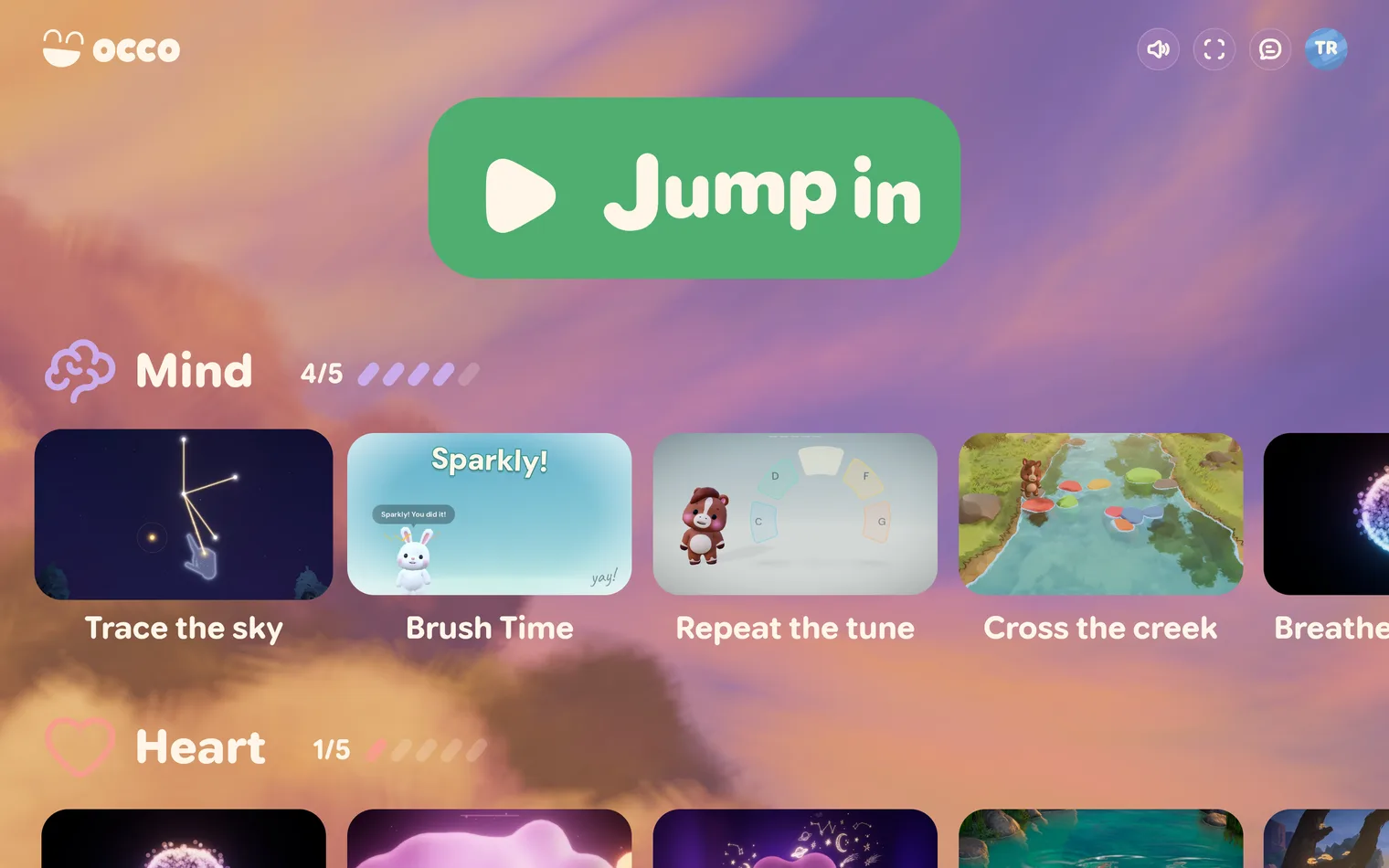
- Jump in starts a random activity. It is handy when your child just wants to play, right now.
- Tap a card to open it and see what the activity is for before you start. More on that below.
- There is more to the right in most rows. Swipe the row on a tablet. With a mouse, point at the card cut off at the right edge and click the arrow that appears. A row of three or more activities goes round and round, so it never runs out.
- Scroll down for the other skills.
One row for each skill
The rows follow the six skills in Progress. Each skill is a part of your child. Here is what each one covers, with a few activities you will find in its row:
- Mind: planning, remembering, staying with it. Repeat the tune, Cross the creek, Brush Time, Trace the sky.
- Heart: calm, waiting, taking turns. Breathe and relax, Blow bubbles, Lava lamp, Catch fireflies.
- Hands: reaching and using both sides. Make a rainbow, Play with snow, Paint with hands, Feed the fish.
- Fingers: small, careful movements. Shadow puppets, Draw on the sand.
- Legs: staying steady, moving big. Step on mushrooms, Take a walk in the forest, Throw leaves.
- Eyes: seeing it and reacting fast. Step on mushrooms, Draw on the sand, Trace the sky.
Many activities work on more than one skill, so you will find them in more than one row. Next to each skill’s name is your child’s level in that skill, out of 5.

The levels belong to whoever is playing. When you switch profile, the levels change with it. Progress explains how a level goes up.
The activity card
Tap any activity to open its card before you start.
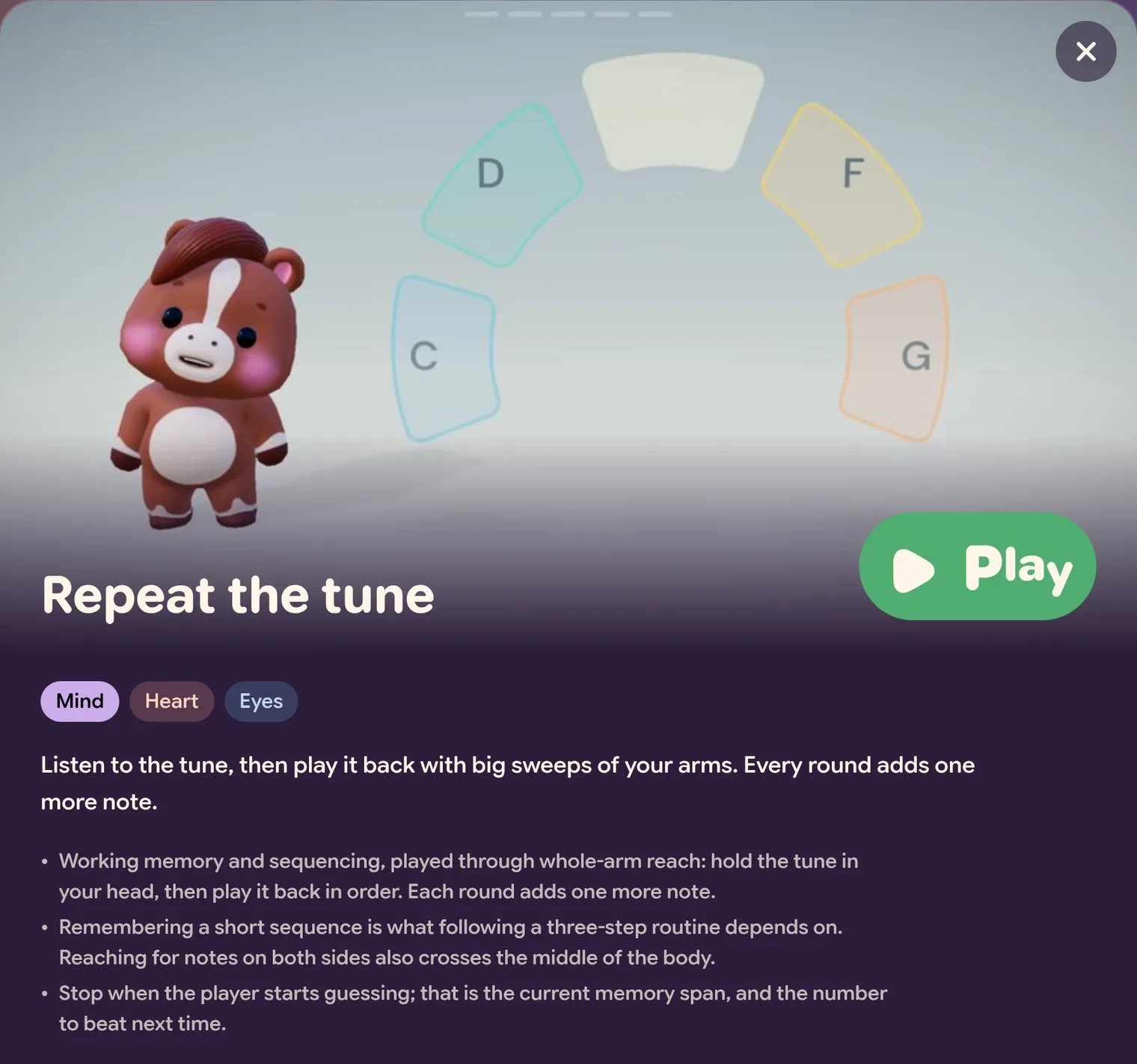
- Play starts the activity.
- The skill tags show every skill the activity works on. The filled-in tag comes first: it is the skill the activity is mainly for.
- The first sentence is written for your child. It says what they will do, so you can read it aloud together.
- The notes underneath are for you: what the activity works on, why it might help, and how to get the most from it. If an activity needs something in the room, the notes say so. For example, Step on mushrooms and Cross the creek need physical stepping stones.
The arrows on the left and right of the screen move through the other activities in the same row. The arrow keys on a keyboard do the same. To close the card, press the ✕, press Esc, or tap outside it.
What this activity notices
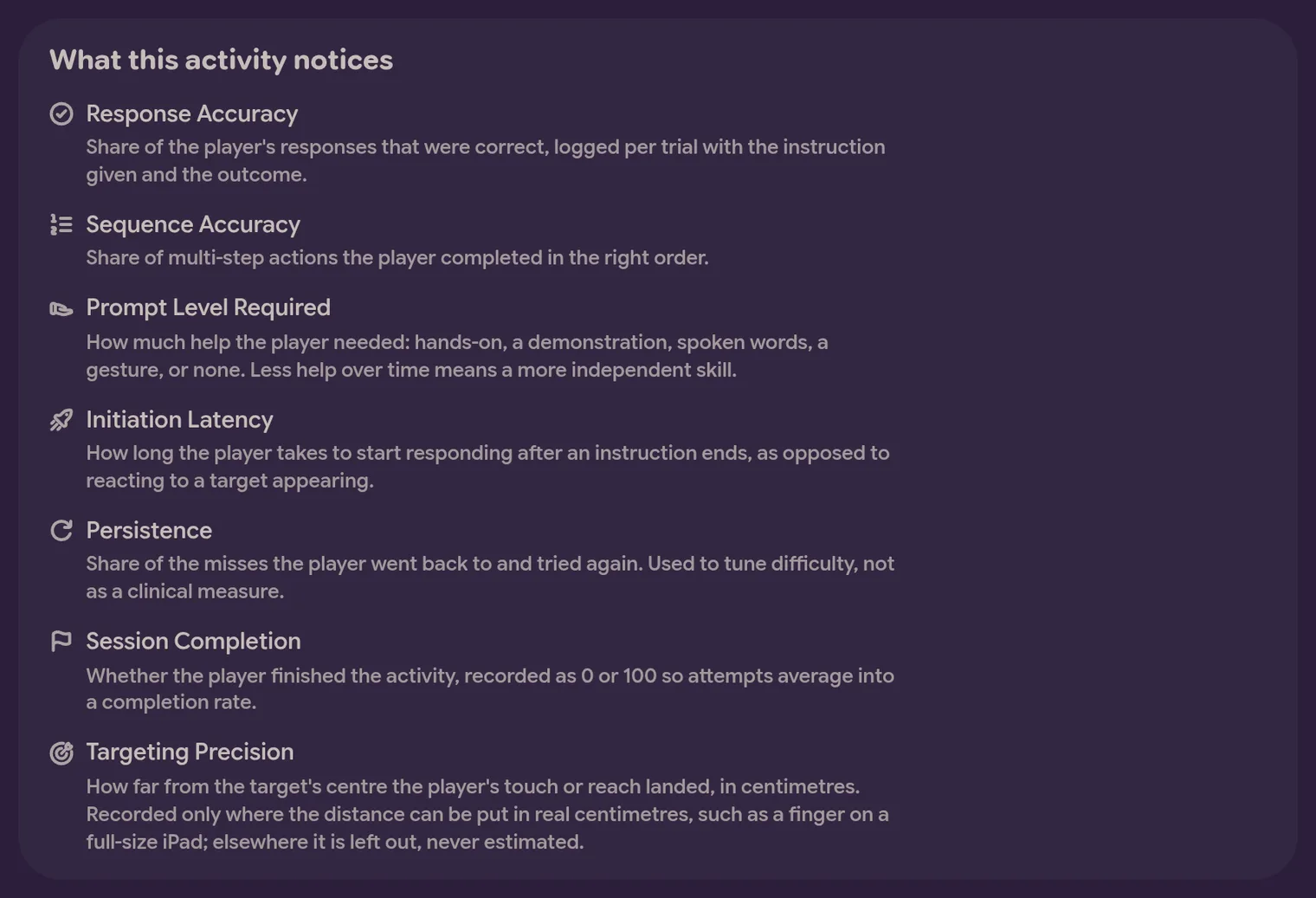
Two activities, Repeat the tune and Trace the sky, also list what they notice while your child plays. That includes how many answers were right, how much help your child needed, and how quickly they started. You never need this box to play. It is there for a parent, therapist or teacher who wants to know what the activity records, and what it records shows up in Progress.
While your child plays
A row of small buttons runs along the top of the screen. It fades out after a few seconds, so the activity has the whole screen. To bring it back, move the mouse or tap the screen.
Top left

- ✕ closes the activity and takes you back to the home screen.
- The camera button is green while the camera is on. Tap it to turn the camera off and play with touch or a mouse instead. Tap it again to turn the camera back on. The choice is saved for the child who is playing. Camera setup has more.
Top right

- Speaker: sound. Click it to mute, or point at it (press and hold on a touch screen) for the volume slider. The M key mutes too. See sound and volume.
- Ear and eye: the buddy button. Each tap changes how the buddy joins in: seen, heard, both, or off. See your buddy.
- Crossed-out screen: turns the screen black while the sound keeps playing. This helps when your child is breathing with the lights down, or when the picture is too much. To bring the picture back, move the mouse and click the same button. Touching the black screen does not bring it back, so on a tablet without a mouse, reload the page instead.
- Four corners: full screen. The F key does the same.
- Magnifying glass: search for an activity or a setting.
- Sliders: this activity’s own settings. Only some activities have them (see below).
- Arrow into a box: join a shared session someone else has started. You will not need it at home.
- Person with a magnifying glass: change profile. It opens Who’s playing?
- The profile button shows who is playing, and opens the account menu: Change Profile, Buddy, Account Settings, Progress, Theme, Help and Log out.
On a smaller screen — a phone, or a tablet held upright — the sound, buddy, full-screen and search controls move into the account menu instead. Tap the profile button to open it. The screen-off and settings buttons are only on wider screens, so turn a tablet sideways to reach them.
Activity settings
A few activities have settings of their own, under the sliders button. They are saved for the profile that is playing, so each child keeps their own.
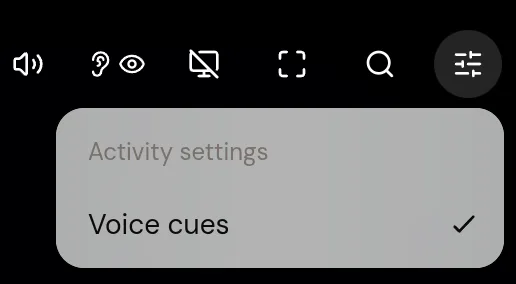
- Breathe and relax: Voice cues. On at the start. The buddy says when to breathe in, hold and breathe out. Turn it off to follow the sphere without the spoken cues.
- Trace the sky: Discrete Trial pacing. Off at the start. When it is on, the next star waits two seconds after each line before your child can join it. Some therapists like to work this way. If nobody has asked you to use it, leave it off.
Which activity for which moment
The rows tell you what an activity works on. When you are choosing for the moment you are in, these are good places to start:
- Winding down, or a hard moment: Breathe and relax, Lava lamp, Blow bubbles, Catch fireflies. The Heart row is the place to look.
- Too much energy: Throw leaves, Play with snow or Make a rainbow let your child move big for a few minutes. Follow with something calmer.
- Something to think about: Repeat the tune adds a note each round. Cross the creek asks for a plan before the first step. Trace the sky joins stars into pictures.
- A daily routine: Brush Time is two minutes of brushing teeth alongside the buddy, with a new hat to wear at the end each day — a crown, a pirate hat, bunny ears.
- A nervous first try: Paint with hands and Calm in the field have nothing to get wrong.
- Playing together: up to four people can blow bubbles at once in Blow bubbles. Most movement activities follow two people by default; see camera setup for how to change that.
Where to start
Pick one activity and stay in it longer than feels necessary. On a first evening, it is tempting to show a child everything, and that is exactly the wrong way to begin. One activity, a few minutes, sound low, and let them find out that it responds to them.
After that, follow what actually worked. Progress lists every activity your child has played, day by day. You can see what they keep coming back to, instead of relying on your memory of a difficult week.