
Your buddy
The buddy is the friendly character who keeps your child company in occo’s activities. It talks them through what to do and cheers them on. Each child has their own, and you can choose how it joins in: seen, heard, both, or not at all.
Picking a buddy for the first time
There are four buddies: Bunny, Horsie, Shiba and Granny. When you first join occo, the Buddy page opens as soon as your membership starts, so you can pick yours.
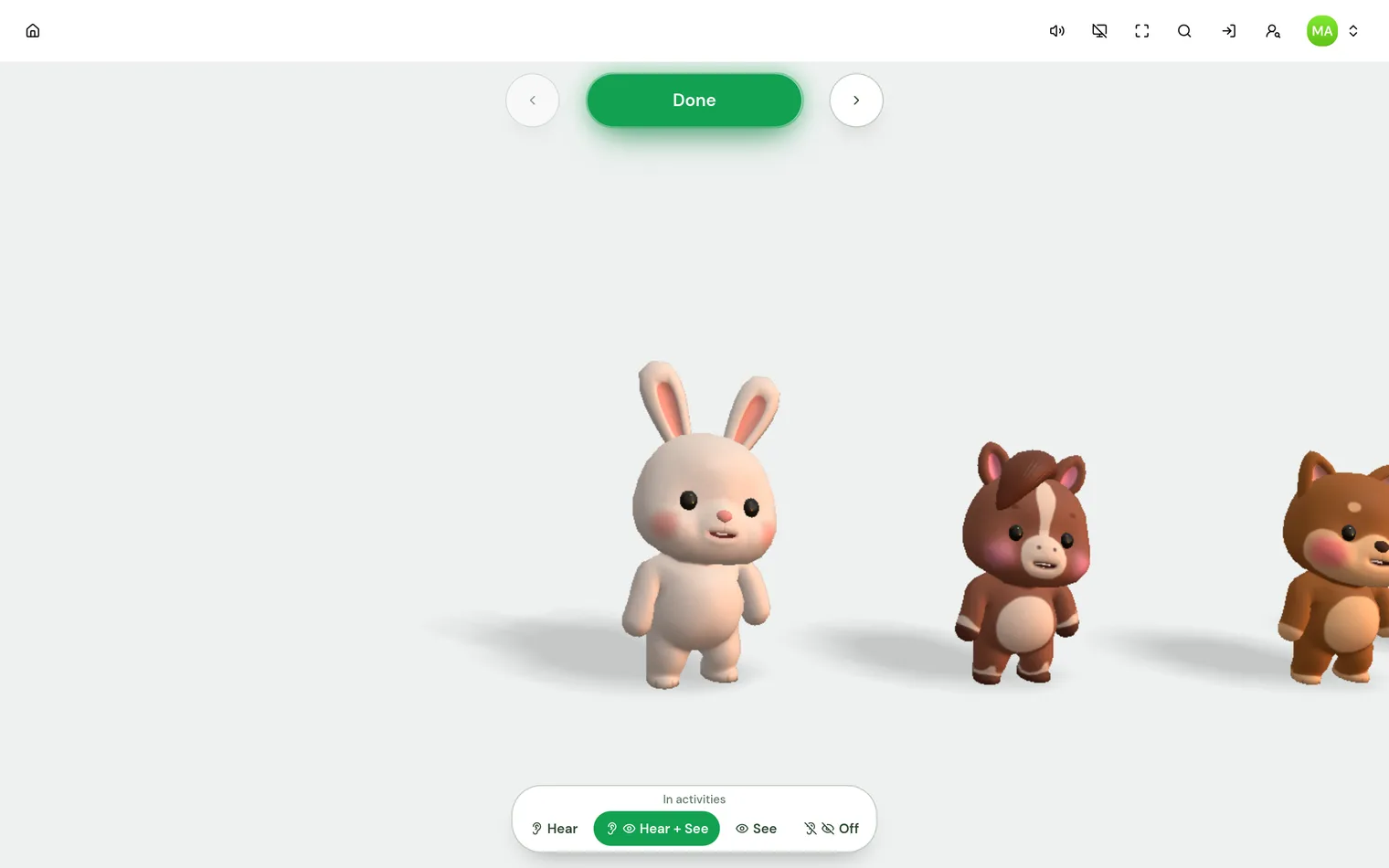
Every profile you add for a child starts with Bunny. Choosing their own is a lovely thing to do together: sit with your child, look at each buddy, and let them decide. There is no wrong answer, and they can change it whenever they like. The next section shows how.
Changing the buddy later
The buddy belongs to the profile that is playing, so first make sure it is your child’s: switch to them on Who’s playing? (see family profiles and devices). Then:
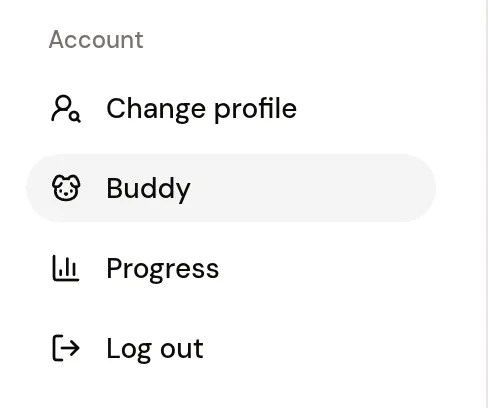
- Open the account menu. It is the round button with the letters of the name, in the top-right corner of the home screen.
- Choose Settings.
- Under Account, at the bottom of the list on the left, choose Buddy. On a phone, open the list with the menu button at the top of Settings first.
- Look through the buddies with the arrow buttons at the top of the screen. You can also swipe, or use the arrow keys on a keyboard.
- Press the green Done button (or Enter). Your new buddy celebrates, and you are back on the home screen.
Changed your mind? Press Esc, or the house button at the top left, to leave without changing the buddy.
During an activity there is a shorter way: the account menu at the top right of the screen has Buddy in it too.
Seen, heard, both, or off: choosing how the buddy joins in
Some children love the buddy. Some find its voice too much, find a character on the screen distracting, or would simply rather play on their own. Buddy mode lets you keep the part that helps and drop the part that does not. There are four choices:
- Hear + See (the standard setting). The buddy is on the screen, its words appear in speech bubbles, and you hear its voice.
- See. The buddy and its speech bubbles stay on the screen, and its mouth still moves as it talks — but there is no voice. Good for a child who is sensitive to voices, or for a quiet house when someone is asleep. With a child who is not reading yet, you can read the bubbles aloud together.
- Hear. The buddy and its speech bubbles are hidden, and you still hear its voice. The activity has the whole screen. Good for a child who finds the character distracting or worrying, but still likes being talked through.
- Off. No buddy on the screen and no voice. The activity has the whole screen and runs without the buddy. When it asks your child a question, the question is written above the answer buttons instead. Good for a child who finds the buddy too much altogether, or who is happier doing activities on their own.


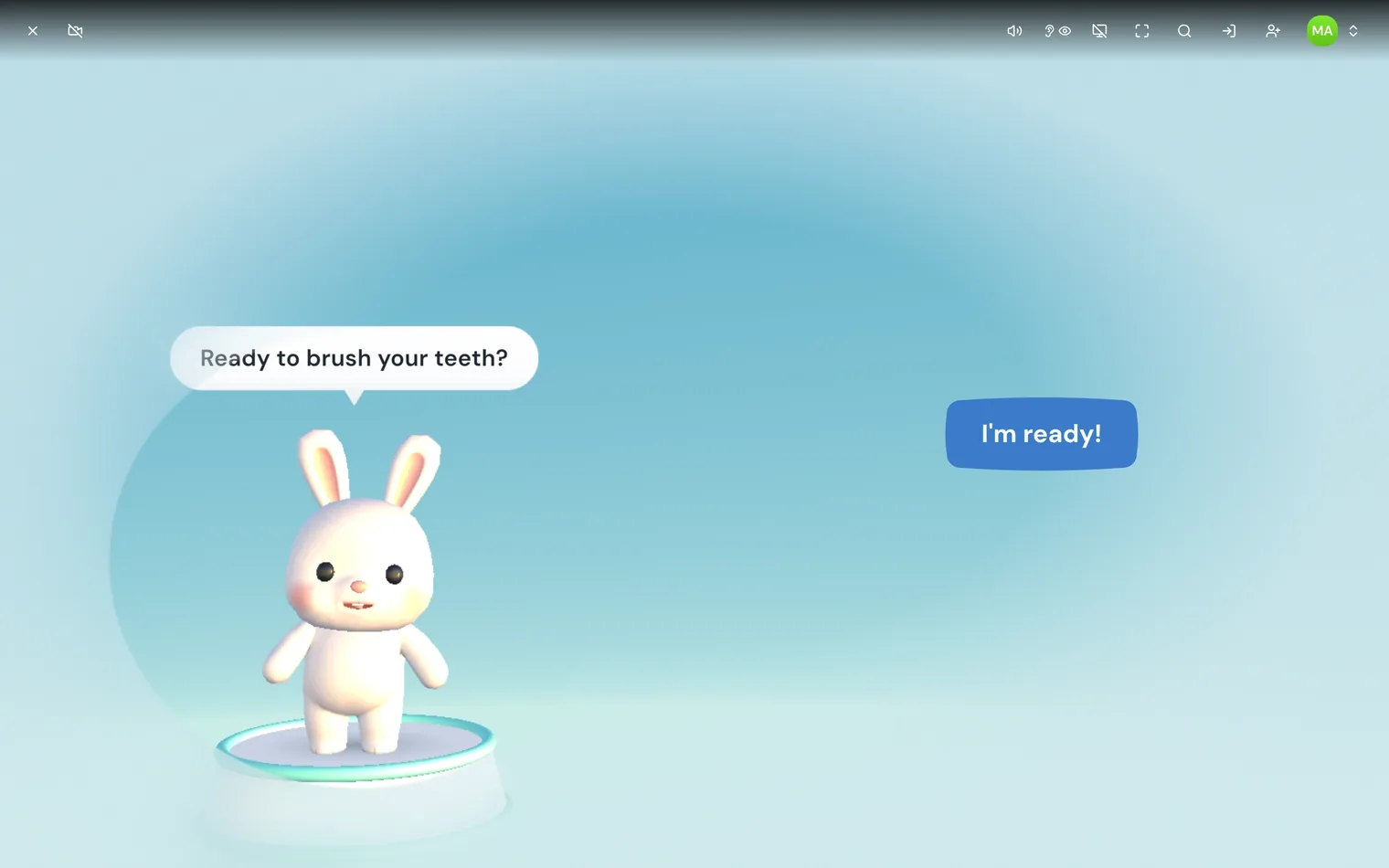
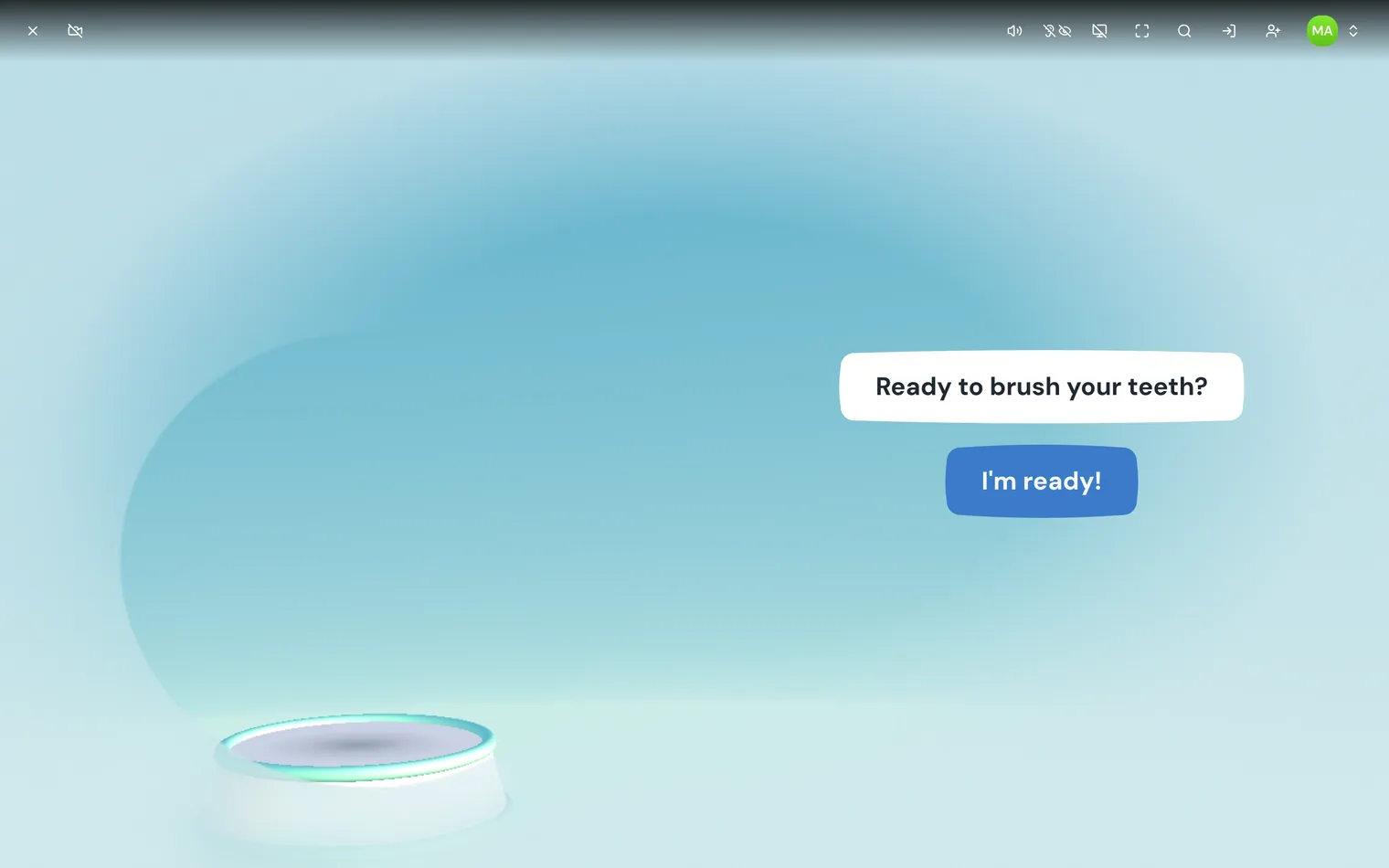
Whichever mode you pick:
- Your child can still answer questions. When an activity asks something with answer buttons, the buttons always appear. In Off, the question is written above them.
- It only applies inside activities. The Buddy page always shows every buddy, so you can still see who you are choosing.
- Only the buddy changes. The activity’s music and sounds carry on as normal.
On the Buddy page
- Open the Buddy page for your child, as in changing the buddy.
- At the bottom of the screen, under In activities, tap Hear, Hear + See, See, or Off.
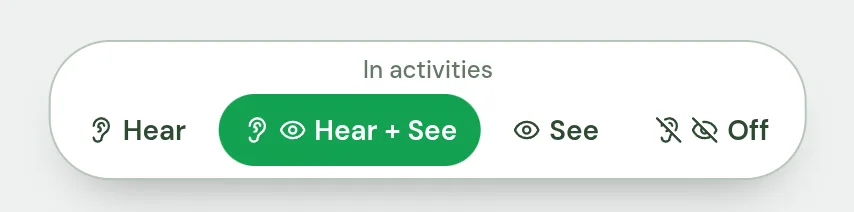
Your choice is saved as soon as you tap it. You do not need to press Done, and leaving with Esc keeps it.
During an activity
This is the quickest way, and handy when you can see something is not working right now. At the top of the screen, right after the volume button, there is a small buddy button with an ear and an eye on it. If the row of buttons has faded away, move the mouse or tap the screen to bring it back. Each tap of the buddy button moves to the next mode:
Hear + See → See → Hear → Off → Hear + See

The button always shows the mode you are in:


The change happens straight away, even in the middle of a sentence, and it is saved to your child’s profile. On a smaller screen — a phone, or a tablet held upright — the button is in the account menu instead: tap the profile button at the top right, then Buddy mode, which names the mode you are in. Each tap moves to the next one.
Each child keeps their own
The buddy and the buddy mode are both saved to your child’s profile, not to the device. Your child sees the same buddy, joining in the same way, on the TV computer and on the tablet. A brother or sister with their own profile can have a different buddy and a different mode, and changing one never changes the other. Family profiles and devices explains how profiles work.