
Family profiles and devices
Each child in your home gets their own profile, with their own buddy, levels and history. You switch between them on the Who’s playing? screen. One subscription covers every child and every screen in the house.
One account, a profile for each child
You hold the account. Inside it, each child gets a profile of their own. A profile is just a name: no email address, no password, and nothing for your child to remember.
Profiles are unlimited on the occo plan. There is no fee per child and no reason to make two children share one.
What each profile keeps
- Their buddy. The character they picked, and whether it is seen, heard, both or off. See your buddy.
- Their levels and history. Every activity they play counts for their profile only. Progress shows each child on their own, never an average of the house.
- Their settings. Camera mode, each activity’s own settings, and where they left off in an activity.
These belong to the profile, not the screen, so a child finds the same buddy and the same levels on the TV and on the tablet. The sound level belongs to the screen instead: turn it down on the tablet and it stays down on the tablet, whoever is playing. See sound and volume.
Who’s playing?
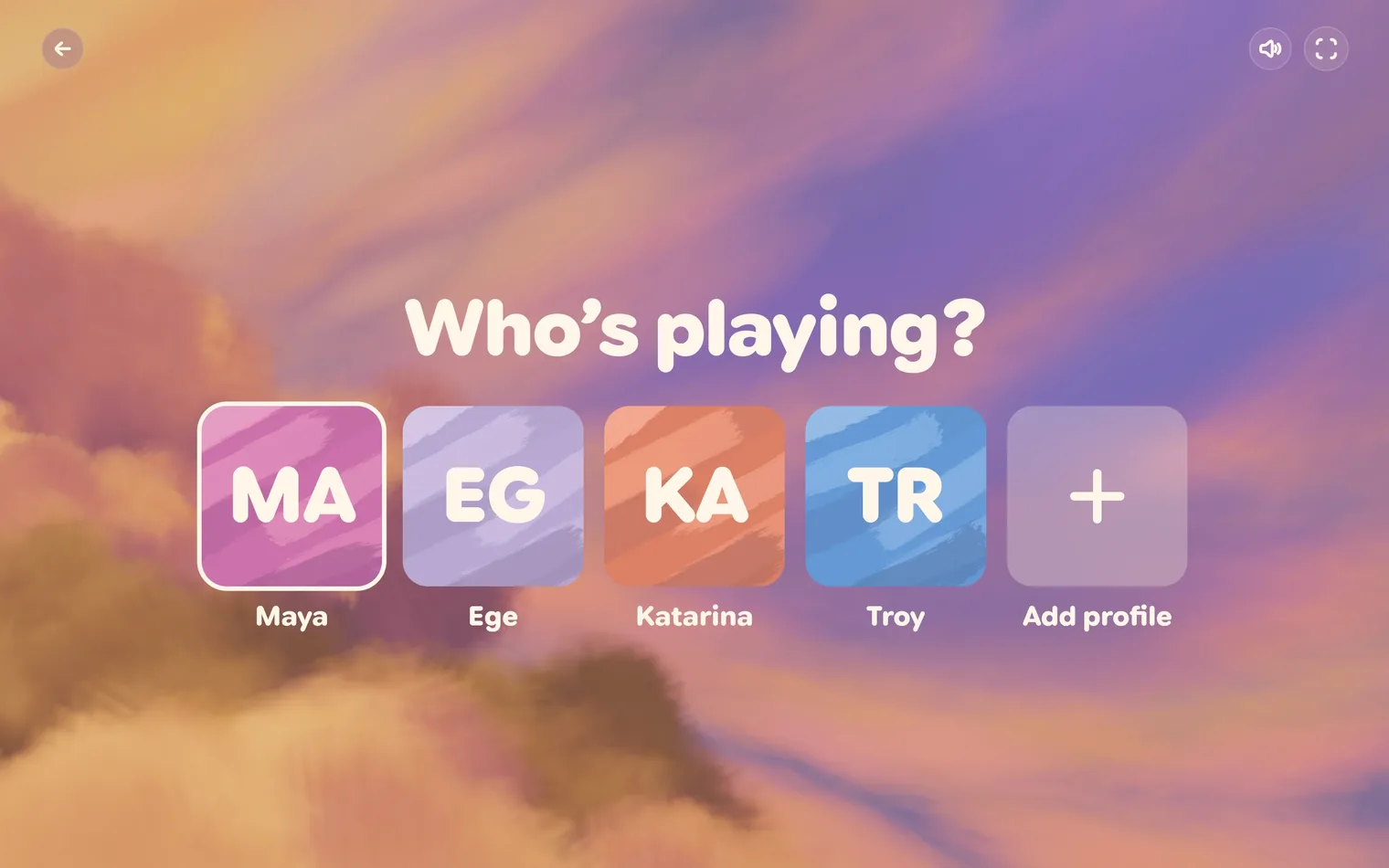
Who’s playing? is where you switch between profiles. Every profile in your home has a painted tile with the first letters of its name.
How to open it
- Open the account menu. It is the round button with the letters of the name, in the top-right corner of the home screen.
- Choose Change profile.
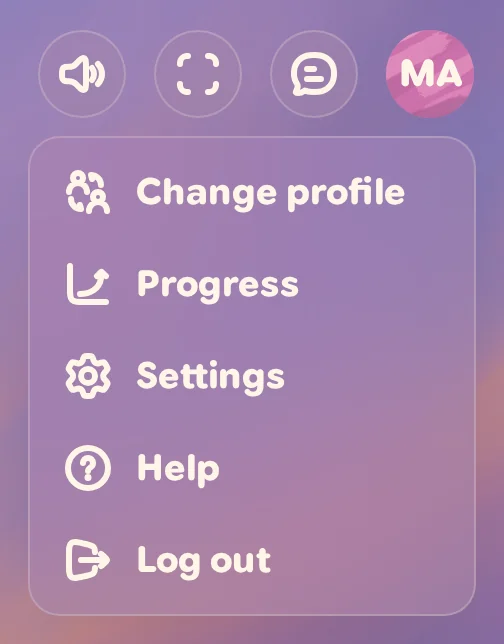
Once you have added a child, Change profile is also in Settings, under Account.
Switching to a child
- Tap your child’s tile.
- occo opens the home screen, ready for them to play.
Your tile always comes first, then your children in alphabetical order. The tile with the cream ring is the profile playing now. Tap it and you go straight back to the home screen, with nothing changed.
The back arrow at the top left takes you back to where you were. occo never opens Who’s playing? on its own. The screen stays on the last profile picked until someone changes it.
Adding a profile
- Open Who’s playing? and tap Add profile, the tile with the plus sign.
- Type your child’s name.
- Press Create profile.
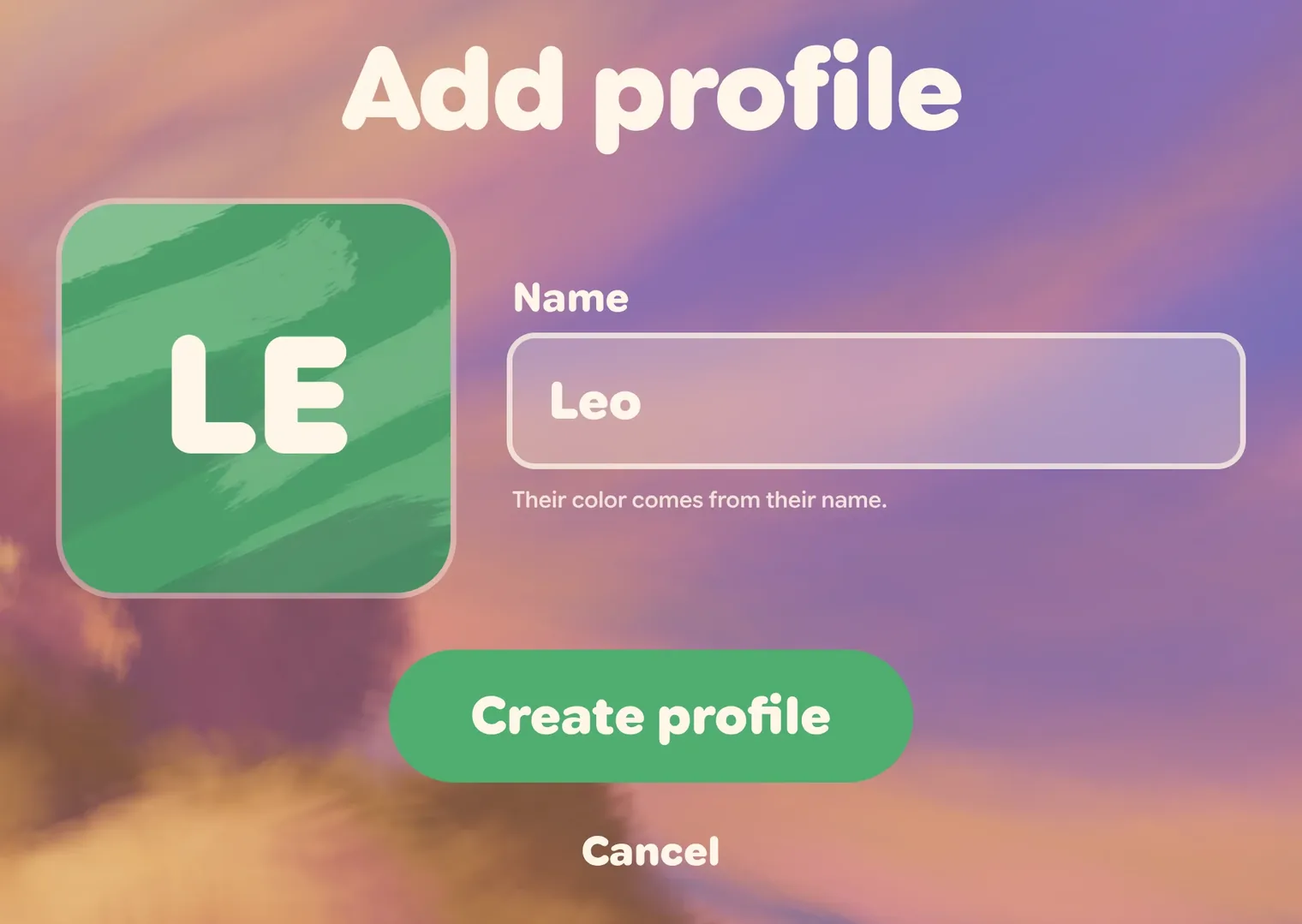
Their new tile joins the others. Tap it when they are ready to play.
There is no colour to choose. The colour comes from the name, and each child in the family gets a different one. Adding a brother or sister later never changes anyone else’s colour, so a child’s colour stays theirs.
The name is the only thing a profile needs, and it is stored in your account. A first name or a nickname works just as well. The camera and your family’s privacy covers what is stored and where.
While your child is playing
The round button in the top-right corner of the home screen shows who is playing. It takes the same colour and letters as their tile, so you can tell at a glance.


Inside an activity, the profile button at the top right shows the same letters with an amber ring while a child is playing, and on a wide screen it says Viewing as and their name.
Only you can add profiles. While a child’s profile is picked, Who’s playing? has no Add profile tile, and the ring sits on that child.
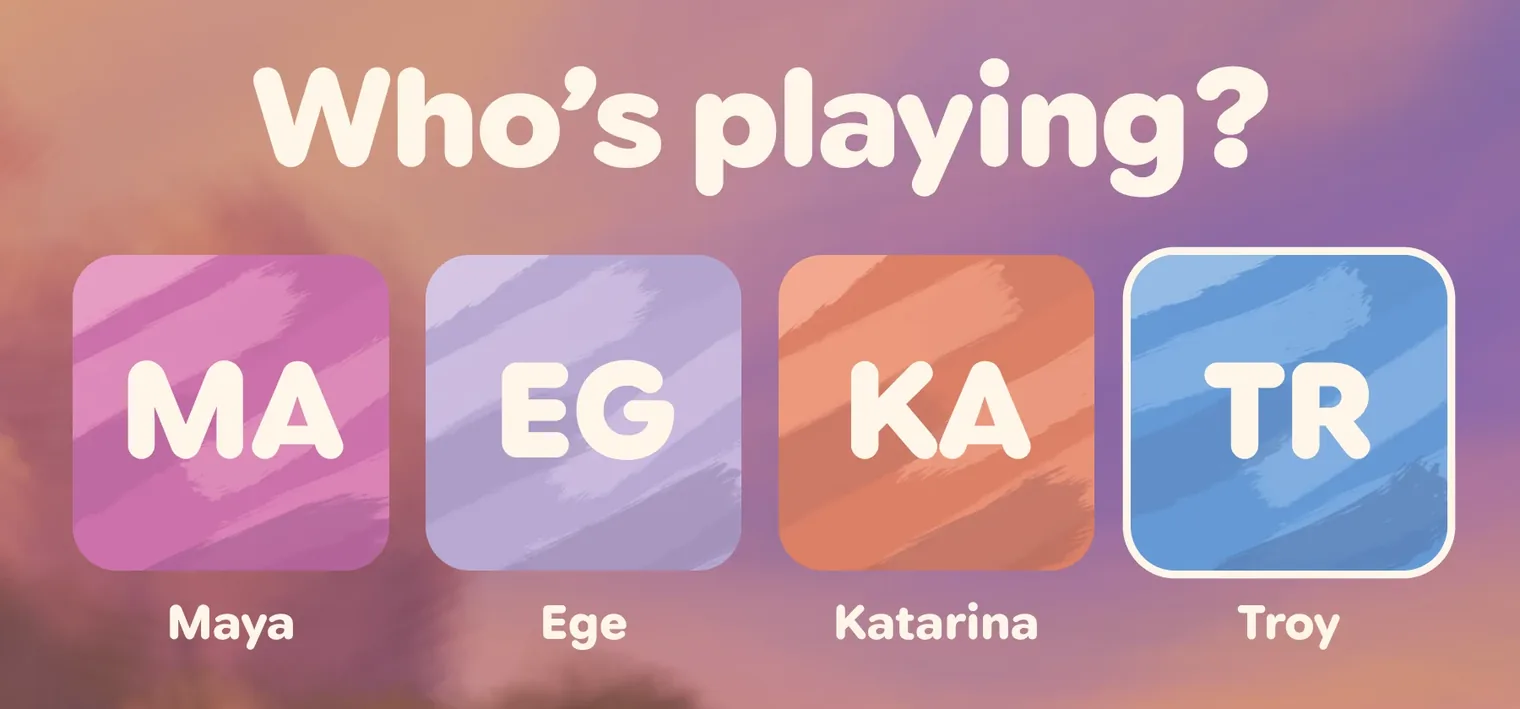
To get back to your own profile, open Who’s playing? and tap your tile, or choose Back to and your name in Settings, under Account. If you choose Log out while a child is playing, occo goes back to your profile first, then logs you out.
Using it on more than one screen
Devices are unlimited too. The computer plugged into the TV, the family tablet and a laptop can all use the same subscription at once. Sign in with your account on each one. There is nothing to register or set up. Every profile is already there.
Each screen remembers who is playing on it. So the TV can stay on one child while the tablet is on another. Two tabs in the same browser share one, though.
Which device suits which moment tends to sort itself out:
- The TV. Room-sized, movement-driven, the whole family can be in it. See putting occo on your TV.
- The tablet. Personal and portable: a car, a waiting room, a quiet corner. Touch works without a camera.
- A laptop. Fine on its own, and it is also the thing you plug into the TV when you want it big.
Whichever screen you are on, check what the requirements page says about performance. A device that runs occo happily on its own screen has more work to do when it is also driving a television.
What the family plan does not include
occo is made by Ouva, whose platform also runs in clinics, schools, and hospitals, and those installations carry administrative machinery a household neither gets nor needs. If you have read about that side of Ouva and wondered where it is in your account, that is why. Ouva’s pricing page lays out the difference between the two plans plainly.